> ## Documentation Index
> Fetch the complete documentation index at: https://manual.muzemus.online/llms.txt
> Use this file to discover all available pages before exploring further.
# Data Import Hub
> The consolidated page for all bulk spreadsheet imports.
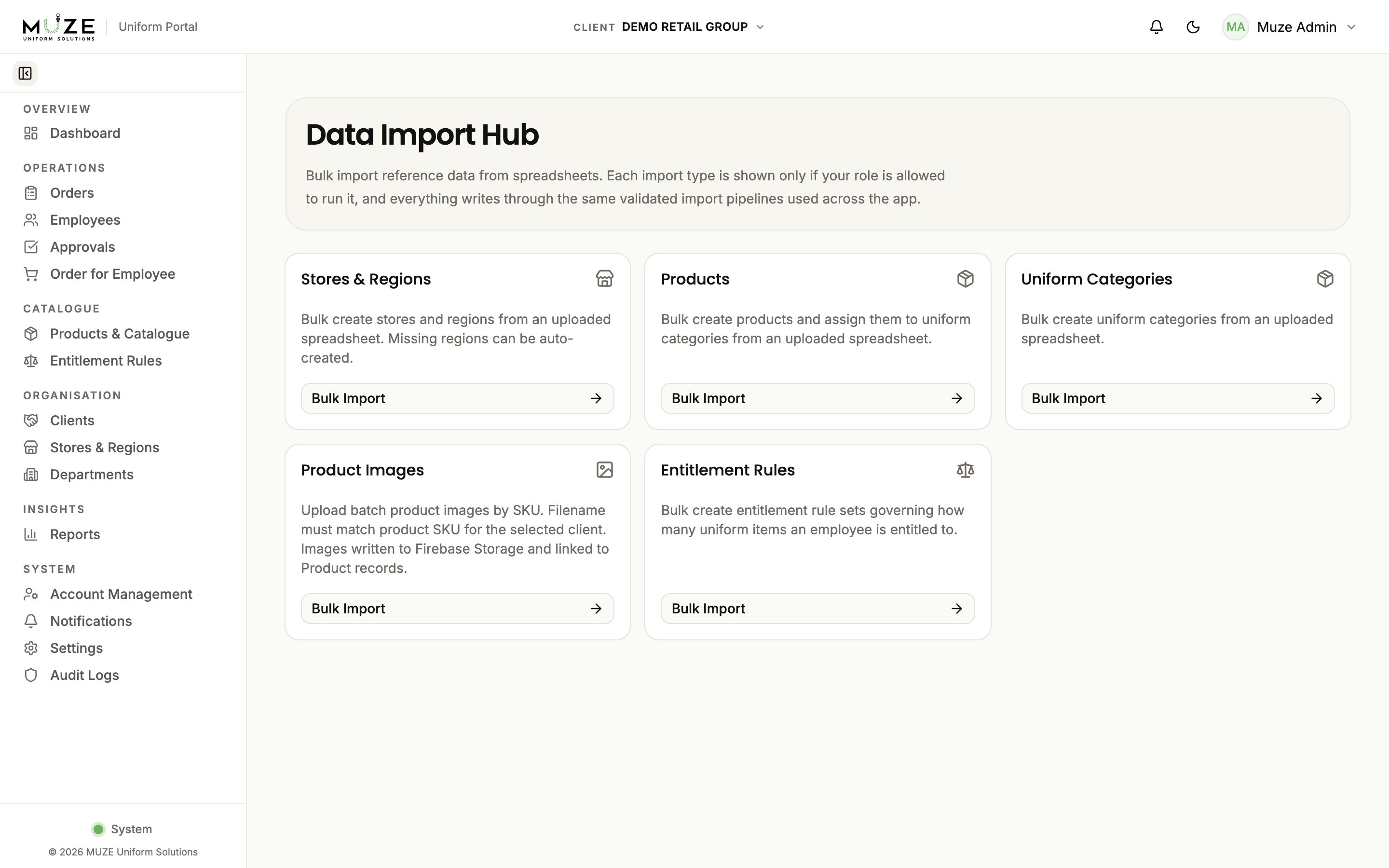
The Data Import Hub gathers every bulk spreadsheet import tool in one place. It is available only to Muze Admin users.
Navigate to **Data Import Hub** from the sidebar under **System**.
## Available imports
| Import | Description |
| ---------------------- | ----------------------------------------------------------------- |
| **Stores & Regions** | Bulk create or update stores; missing regions can be auto-created |
| **Products** | Bulk create products and assign them to uniform categories |
| **Uniform Categories** | Bulk create uniform categories |
| **Product Images** | Batch-upload product images by SKU filename |
| **Entitlement Rules** | Bulk create entitlement rule sets with their allocation items |
Employee CSV import is not on the Import Hub. It lives on the [Employees page](/administrator/managing-employees) because HR holds that permission too.
 ## Import process
Every import follows the same flow:
Click the relevant card.
Upload a CSV or XLSX file. Headers and data are validated.
The dialog shows the data to be imported with validation status per row.
Click **Import**. The system returns a batch report with success and error counts.
## Import formats
### Stores and regions
| Header | Required | Description |
| ------------------------------ | -------- | ---------------------------------------------------------------------------------------- |
| `Store No.` | Yes | Store number |
| `Store Name` | Yes | Store name |
| `Address` | No | Store address |
| `Region` | No | Region name; blank cells assign to "Unassigned", and missing regions can be auto-created |
| `Division` | No | Division name |
| `Store Manager` | No | Manager name |
| `Email Address (Username)` | No | Manager email |
| `Store Manager contact number` | No | Manager phone |
Existing stores (matched by Store No.) are updated; new stores are created.
### Products
CSV with SKU, type, name, colour, price (in cents), and sizes. Products are assigned to uniform categories during the import.
### Uniform categories
CSV with category names and descriptions.
### Product images
Image files named to match the product SKU (for example `SHIRT-001.jpg`). Each file is matched to its product by SKU and linked.
### Entitlement rules
CSV with client and rule set names, effective dates, approval and cycle settings, and one row per allocation item.
## Import tracking
Every import is recorded as an **Import Batch** with:
* File name and import type
* Total, success, and error row counts
* Per-row error details
* Who initiated the import
## Permissions
Each import card is visible only if your role holds the matching permission. If you hold none, the page shows an explicit empty-state message.
## Related topics
- [Managing stores and regions](/administrator/managing-stores.md)
- [Managing uniform categories](/administrator/managing-uniform-categories.md)
- [Managing products](/administrator/managing-products.md)
- [Managing entitlement rules](/administrator/managing-entitlement-rules.md)
- [Categories and products](/uniform-management/categories-products.md)
## Import process
Every import follows the same flow:
Click the relevant card.
Upload a CSV or XLSX file. Headers and data are validated.
The dialog shows the data to be imported with validation status per row.
Click **Import**. The system returns a batch report with success and error counts.
## Import formats
### Stores and regions
| Header | Required | Description |
| ------------------------------ | -------- | ---------------------------------------------------------------------------------------- |
| `Store No.` | Yes | Store number |
| `Store Name` | Yes | Store name |
| `Address` | No | Store address |
| `Region` | No | Region name; blank cells assign to "Unassigned", and missing regions can be auto-created |
| `Division` | No | Division name |
| `Store Manager` | No | Manager name |
| `Email Address (Username)` | No | Manager email |
| `Store Manager contact number` | No | Manager phone |
Existing stores (matched by Store No.) are updated; new stores are created.
### Products
CSV with SKU, type, name, colour, price (in cents), and sizes. Products are assigned to uniform categories during the import.
### Uniform categories
CSV with category names and descriptions.
### Product images
Image files named to match the product SKU (for example `SHIRT-001.jpg`). Each file is matched to its product by SKU and linked.
### Entitlement rules
CSV with client and rule set names, effective dates, approval and cycle settings, and one row per allocation item.
## Import tracking
Every import is recorded as an **Import Batch** with:
* File name and import type
* Total, success, and error row counts
* Per-row error details
* Who initiated the import
## Permissions
Each import card is visible only if your role holds the matching permission. If you hold none, the page shows an explicit empty-state message.
## Related topics
- [Managing stores and regions](/administrator/managing-stores.md)
- [Managing uniform categories](/administrator/managing-uniform-categories.md)
- [Managing products](/administrator/managing-products.md)
- [Managing entitlement rules](/administrator/managing-entitlement-rules.md)
- [Categories and products](/uniform-management/categories-products.md)