> ## Documentation Index
> Fetch the complete documentation index at: https://manual.muzemus.online/llms.txt
> Use this file to discover all available pages before exploring further.
# Navigation
> How to find your way around the MUZE Uniform Portal.
The portal uses a sidebar navigation that changes with your role. Only the sections your role allows are visible.
## Layout overview
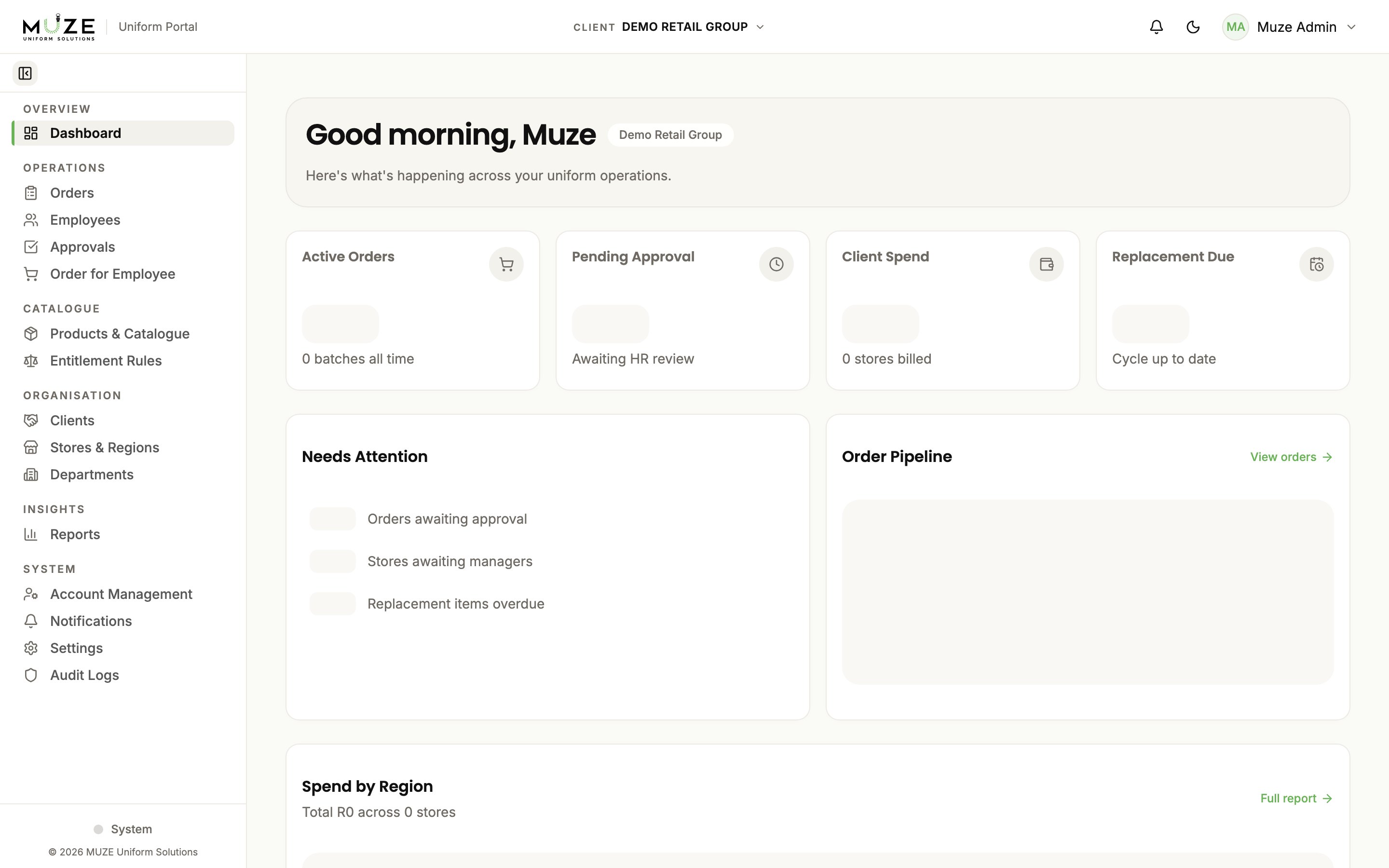
The portal has three main areas:
1. **Navigation bar** (top): brand, Documents link, client selector (admins), notification bell, theme toggle, and user menu
2. **Sidebar** (left): your navigation menu, with collapsible sections
3. **Content area** (centre): the current page
 ## Navigation bar
| Element | Description |
| --------------------- | -------------------------------------------------------------------------------------------------------------------------------------------------------------------------------- |
| **MUZE brand** | The MUZE logo and "Uniform Portal" label |
| **Documents** | Opens the User Guide in a new tab for help using the portal. Hidden on small screens so it does not crowd the bar; select your name or avatar and choose Documents there instead |
| **Client selector** | Admins only; switches between client organisations |
| **Notification bell** | Shows the unread count; select to view notifications |
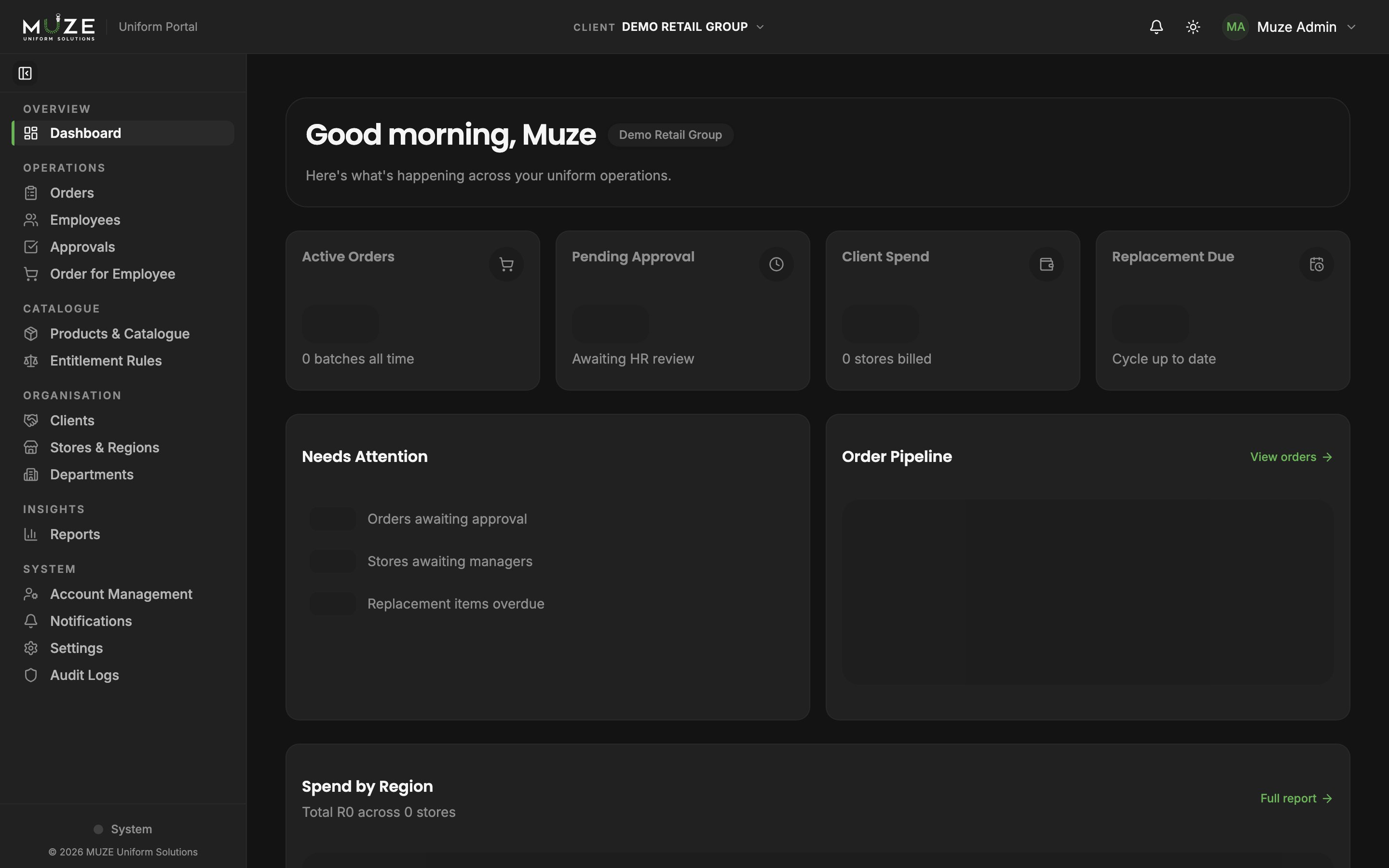
| **Theme toggle** | Switches between Light, Dark, and System theme |
| **User menu** | Your name or avatar, with Profile, Documents and Sign Out |
## Sidebar sections
The sidebar is organised into collapsible groups. The groups shown depend on your role.
### Admin sidebar
* **Overview**: Dashboard
* **Operations**: Orders, Employees, Approvals, Order for Employee
* **Catalogue**: Products & Catalogue, Entitlement Rules
* **Organisation**: Clients, Stores & Regions, Departments
* **Insights**: Reports
* **System**: Account Management, Notifications, Settings, Audit Logs
### HR sidebar
* **Overview**: Dashboard
* **People**: Employees
* **Operations**: Orders, Approvals, Order for Employee
* **Reporting**: Reports
* **System**: Notifications
### Store Manager sidebar
* **Overview**: Dashboard, Store Overview
* **Store**: Employees, Orders, Order for Employee
* **System**: Notifications
## Sidebar features
* **Collapse sections.** Select a section heading to expand or collapse it. Your preference is remembered.
* **Rail mode.** On desktop, collapse the sidebar to a compact icon rail for more screen space.
* **Active indicator.** The current page is highlighted with a green accent bar.
## Client selector
If your account has access to multiple clients, a dropdown appears in the navigation bar. Selecting a different client changes all client-scoped data throughout the portal: stores, employees, products, orders, and reports.
The client selector is only visible to Administrator roles. HR and Store Manager roles are automatically scoped to their assigned client or store.
## Related topics
- [Understanding your role](/getting-started/understanding-your-role.md)
- [Notifications](/orders/notifications.md)
- [Signing in](/getting-started/signing-in.md)
## Navigation bar
| Element | Description |
| --------------------- | -------------------------------------------------------------------------------------------------------------------------------------------------------------------------------- |
| **MUZE brand** | The MUZE logo and "Uniform Portal" label |
| **Documents** | Opens the User Guide in a new tab for help using the portal. Hidden on small screens so it does not crowd the bar; select your name or avatar and choose Documents there instead |
| **Client selector** | Admins only; switches between client organisations |
| **Notification bell** | Shows the unread count; select to view notifications |
| **Theme toggle** | Switches between Light, Dark, and System theme |
| **User menu** | Your name or avatar, with Profile, Documents and Sign Out |
## Sidebar sections
The sidebar is organised into collapsible groups. The groups shown depend on your role.
### Admin sidebar
* **Overview**: Dashboard
* **Operations**: Orders, Employees, Approvals, Order for Employee
* **Catalogue**: Products & Catalogue, Entitlement Rules
* **Organisation**: Clients, Stores & Regions, Departments
* **Insights**: Reports
* **System**: Account Management, Notifications, Settings, Audit Logs
### HR sidebar
* **Overview**: Dashboard
* **People**: Employees
* **Operations**: Orders, Approvals, Order for Employee
* **Reporting**: Reports
* **System**: Notifications
### Store Manager sidebar
* **Overview**: Dashboard, Store Overview
* **Store**: Employees, Orders, Order for Employee
* **System**: Notifications
## Sidebar features
* **Collapse sections.** Select a section heading to expand or collapse it. Your preference is remembered.
* **Rail mode.** On desktop, collapse the sidebar to a compact icon rail for more screen space.
* **Active indicator.** The current page is highlighted with a green accent bar.
## Client selector
If your account has access to multiple clients, a dropdown appears in the navigation bar. Selecting a different client changes all client-scoped data throughout the portal: stores, employees, products, orders, and reports.
The client selector is only visible to Administrator roles. HR and Store Manager roles are automatically scoped to their assigned client or store.
## Related topics
- [Understanding your role](/getting-started/understanding-your-role.md)
- [Notifications](/orders/notifications.md)
- [Signing in](/getting-started/signing-in.md)