> ## Documentation Index
> Fetch the complete documentation index at: https://manual.muzemus.online/llms.txt
> Use this file to discover all available pages before exploring further.
# Approving orders (HR)
> Review and approve or reject pending uniform orders.
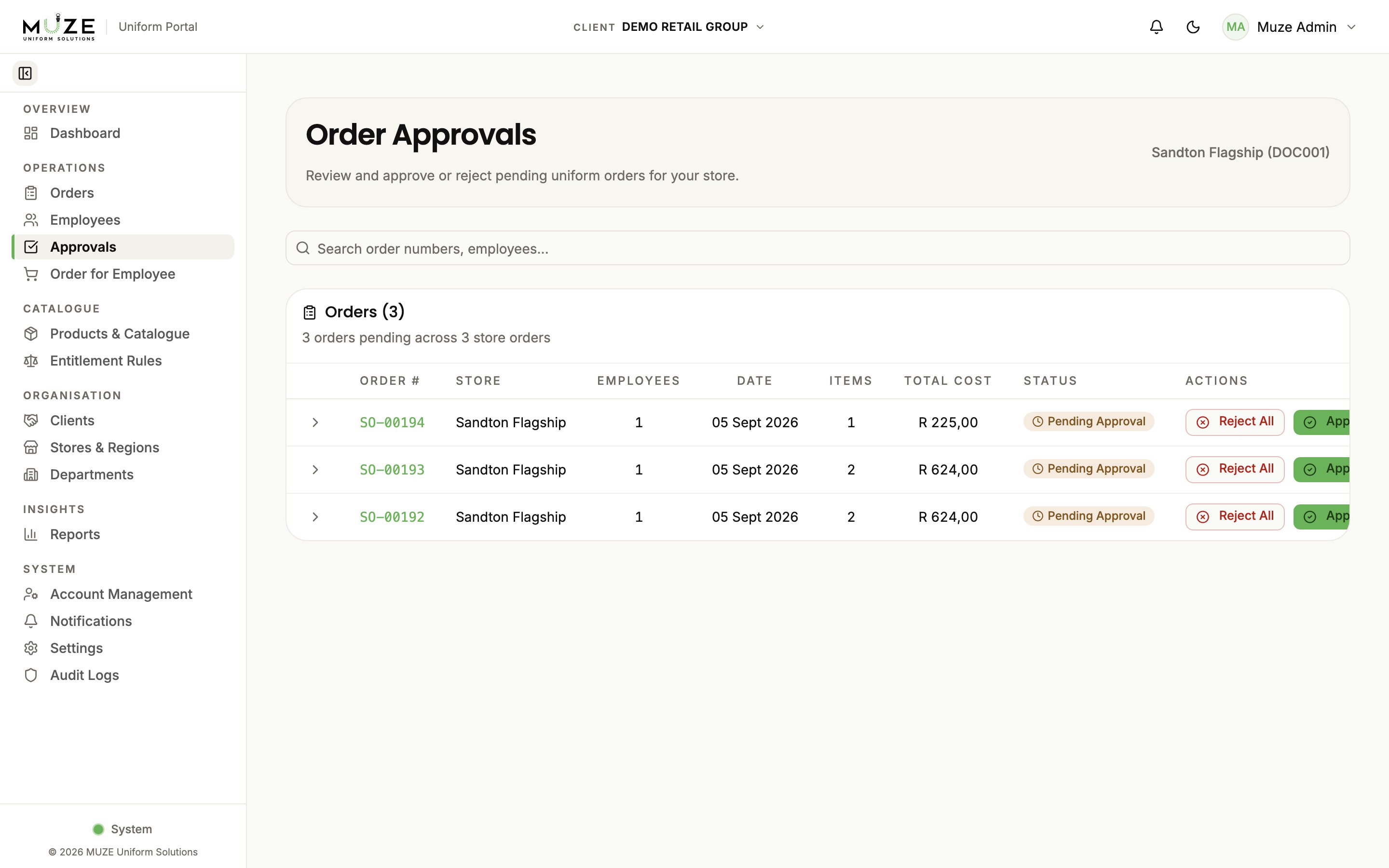
When a Store Manager submits an order that requires approval, the order enters **Pending Approval**. You receive an in-app notification and an email with a "Review & Approve" button and the Sales Order PDF attached.
Navigate to **Approvals** from the sidebar under **Operations**.
## The approval queue
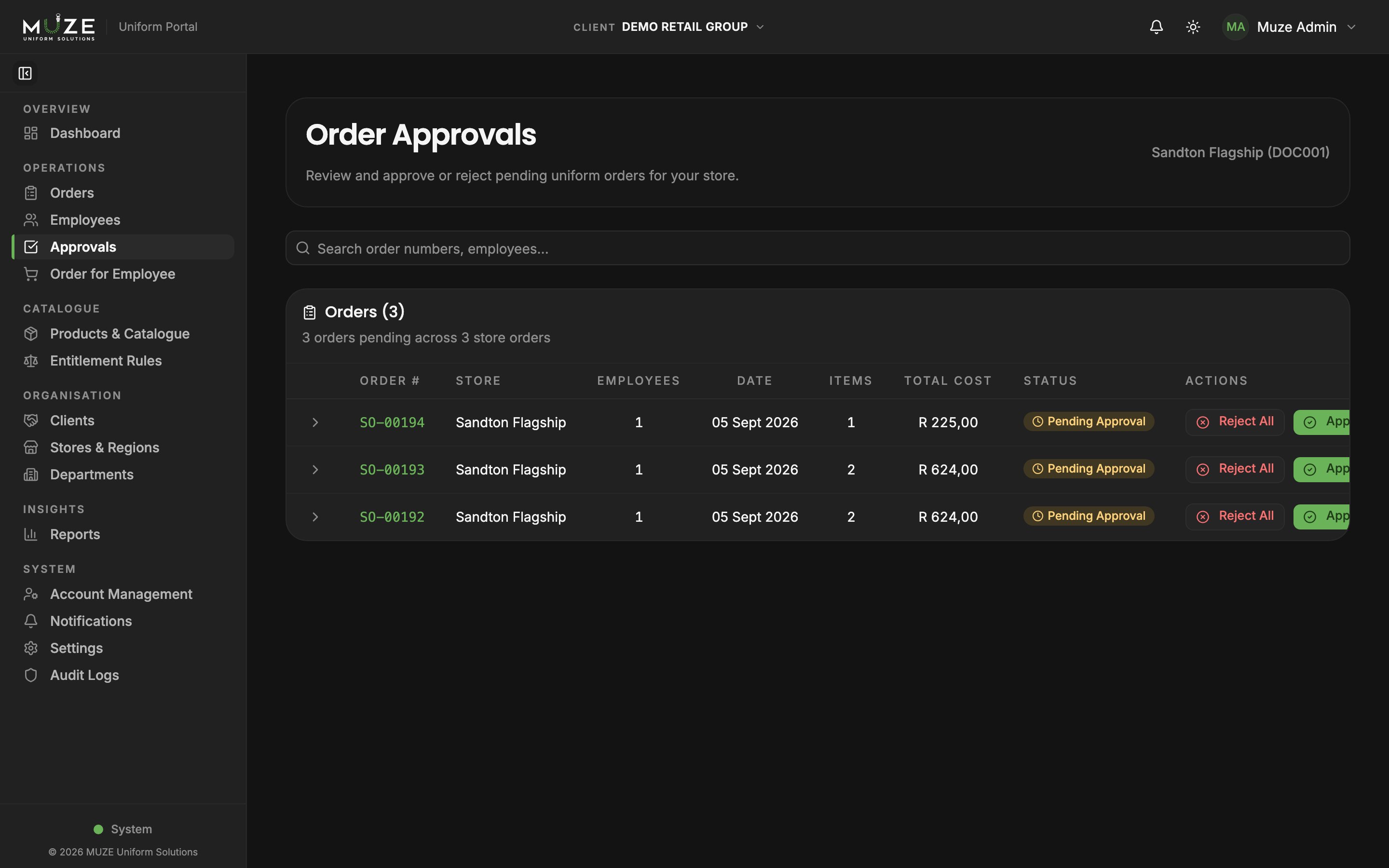
The Approvals page lists every order awaiting approval in your client's stores:
| Column | Description |
| --------------------- | -------------------------------- |
| **Order Number** | The order identifier |
| **Store Order Batch** | The `SO-#####` submission number |
| **Employee** | Who the order is for |
| **Submitted By** | Who placed the order |
| **Store** | The store the order belongs to |
| **Items** | Number of items |
| **Total** | Order total in Rands |
 ## Reviewing an order
1. Click the **order number** to open the detail view.
2. Check the line items, quantities, sizes, and prices.
3. Check the **financial breakdown** of company-paid vs employee-paid amounts.
4. Check the **status timeline** for the order's history.
## Approving
**Single order:**
1. Open the order detail.
2. Click **Approve**; the order moves to **Approved** and enters the production pipeline.
**Whole batch:**
1. Find the `SO-#####` batch in the approvals list.
2. Click **Bulk Approve**; every order in the batch is approved at once.
## Rejecting
**Single order:**
1. Open the order detail.
2. Click **Reject**.
3. Enter a **rejection reason** (required) and confirm.
**Whole batch:**
1. Find the `SO-#####` batch.
2. Click **Bulk Reject**, enter the reason, and confirm.
The rejection reason is recorded in the order's status timeline and shown to the submitter.
## Editing orders before approval
While an order is still **Pending Approval** you can edit its items:
1. Open the order detail.
2. Click **Edit Items**.
3. Modify quantities or sizes, or remove items, and save.
The system re-validates the employee's entitlements and recalculates the company-paid / employee-paid split.
Orders can only be edited while pending. Once approved, items cannot be modified.
## Scope
You can only approve orders belonging to stores in your assigned client. Orders from other clients' stores never appear in your queue.
## Related topics
- [Viewing orders (HR)](/hr/viewing-orders.md)
- [HR overview](/hr/overview.md)
- [Placing orders](/orders/placing-orders.md)
- [Ordering for employees (HR)](/hr/ordering-for-employees.md)
- [Sales Order documents](/orders/sales-orders.md)
## Reviewing an order
1. Click the **order number** to open the detail view.
2. Check the line items, quantities, sizes, and prices.
3. Check the **financial breakdown** of company-paid vs employee-paid amounts.
4. Check the **status timeline** for the order's history.
## Approving
**Single order:**
1. Open the order detail.
2. Click **Approve**; the order moves to **Approved** and enters the production pipeline.
**Whole batch:**
1. Find the `SO-#####` batch in the approvals list.
2. Click **Bulk Approve**; every order in the batch is approved at once.
## Rejecting
**Single order:**
1. Open the order detail.
2. Click **Reject**.
3. Enter a **rejection reason** (required) and confirm.
**Whole batch:**
1. Find the `SO-#####` batch.
2. Click **Bulk Reject**, enter the reason, and confirm.
The rejection reason is recorded in the order's status timeline and shown to the submitter.
## Editing orders before approval
While an order is still **Pending Approval** you can edit its items:
1. Open the order detail.
2. Click **Edit Items**.
3. Modify quantities or sizes, or remove items, and save.
The system re-validates the employee's entitlements and recalculates the company-paid / employee-paid split.
Orders can only be edited while pending. Once approved, items cannot be modified.
## Scope
You can only approve orders belonging to stores in your assigned client. Orders from other clients' stores never appear in your queue.
## Related topics
- [Viewing orders (HR)](/hr/viewing-orders.md)
- [HR overview](/hr/overview.md)
- [Placing orders](/orders/placing-orders.md)
- [Ordering for employees (HR)](/hr/ordering-for-employees.md)
- [Sales Order documents](/orders/sales-orders.md)