

Layout overview
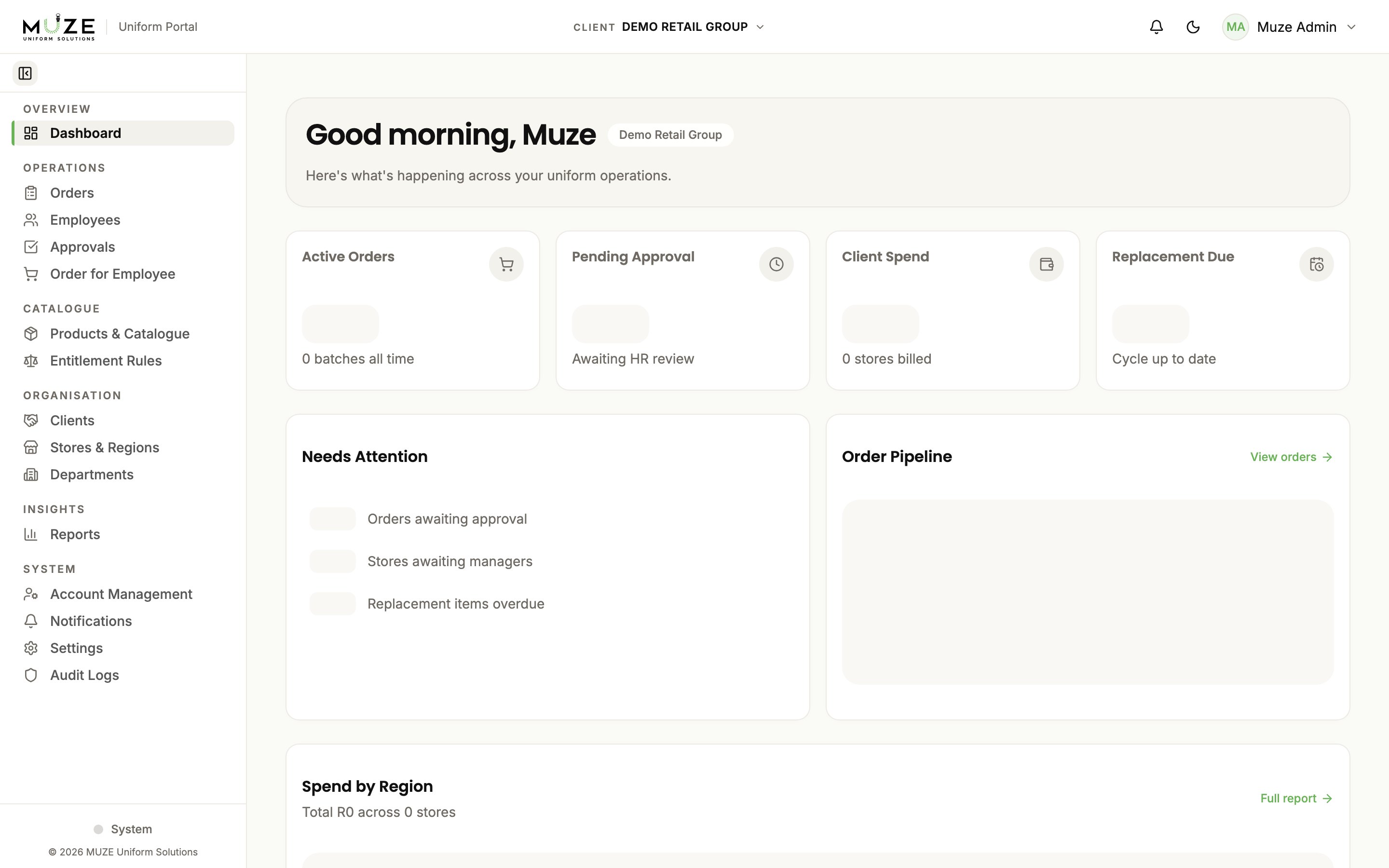
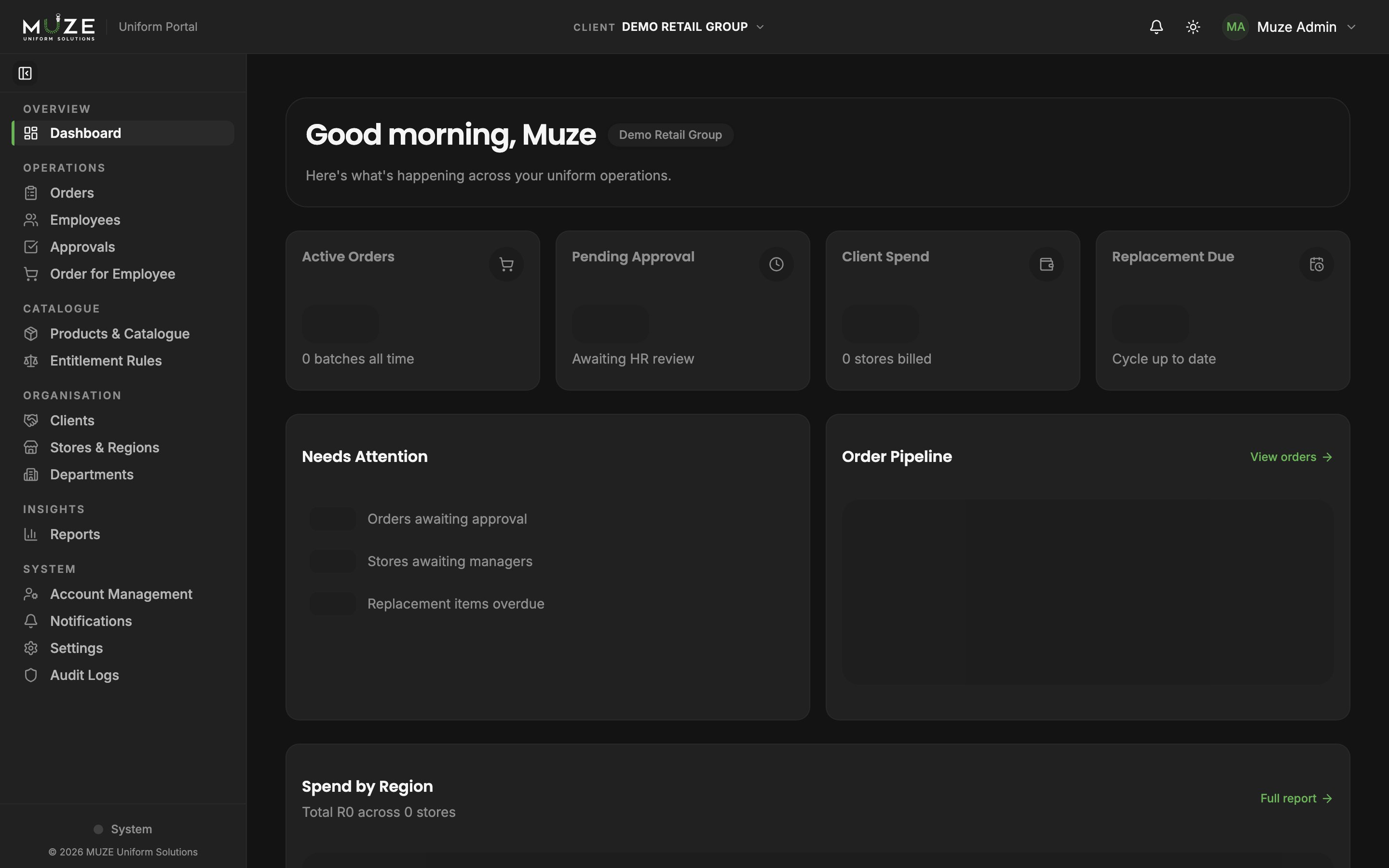
The portal has three main areas:- Navigation bar (top): brand, Documents link, client selector (admins), notification bell, theme toggle, and user menu
- Sidebar (left): your navigation menu, with collapsible sections
- Content area (centre): the current page
Navigation bar
Sidebar sections
The sidebar is organised into collapsible groups. The groups shown depend on your role.Admin sidebar
- Overview: Dashboard
- Operations: Orders, Employees, Approvals, Order for Employee
- Catalogue: Products & Catalogue, Entitlement Rules
- Organisation: Clients, Stores & Regions, Departments
- Insights: Reports
- System: Account Management, Notifications, Settings, Audit Logs
HR sidebar
- Overview: Dashboard
- People: Employees
- Operations: Orders, Approvals, Order for Employee
- Reporting: Reports
- System: Notifications
Store Manager sidebar
- Overview: Dashboard, Store Overview
- Store: Employees, Orders, Order for Employee
- System: Notifications
Sidebar features
- Collapse sections. Select a section heading to expand or collapse it. Your preference is remembered.
- Rail mode. On desktop, collapse the sidebar to a compact icon rail for more screen space.
- Active indicator. The current page is highlighted with a green accent bar.
Client selector
If your account has access to multiple clients, a dropdown appears in the navigation bar. Selecting a different client changes all client-scoped data throughout the portal: stores, employees, products, orders, and reports.The client selector is only visible to Administrator roles. HR and Store Manager roles are automatically scoped to their assigned client or store.